 PearPass
How to Export Your Vault
Export your vault data for backups or to manage your items externally.
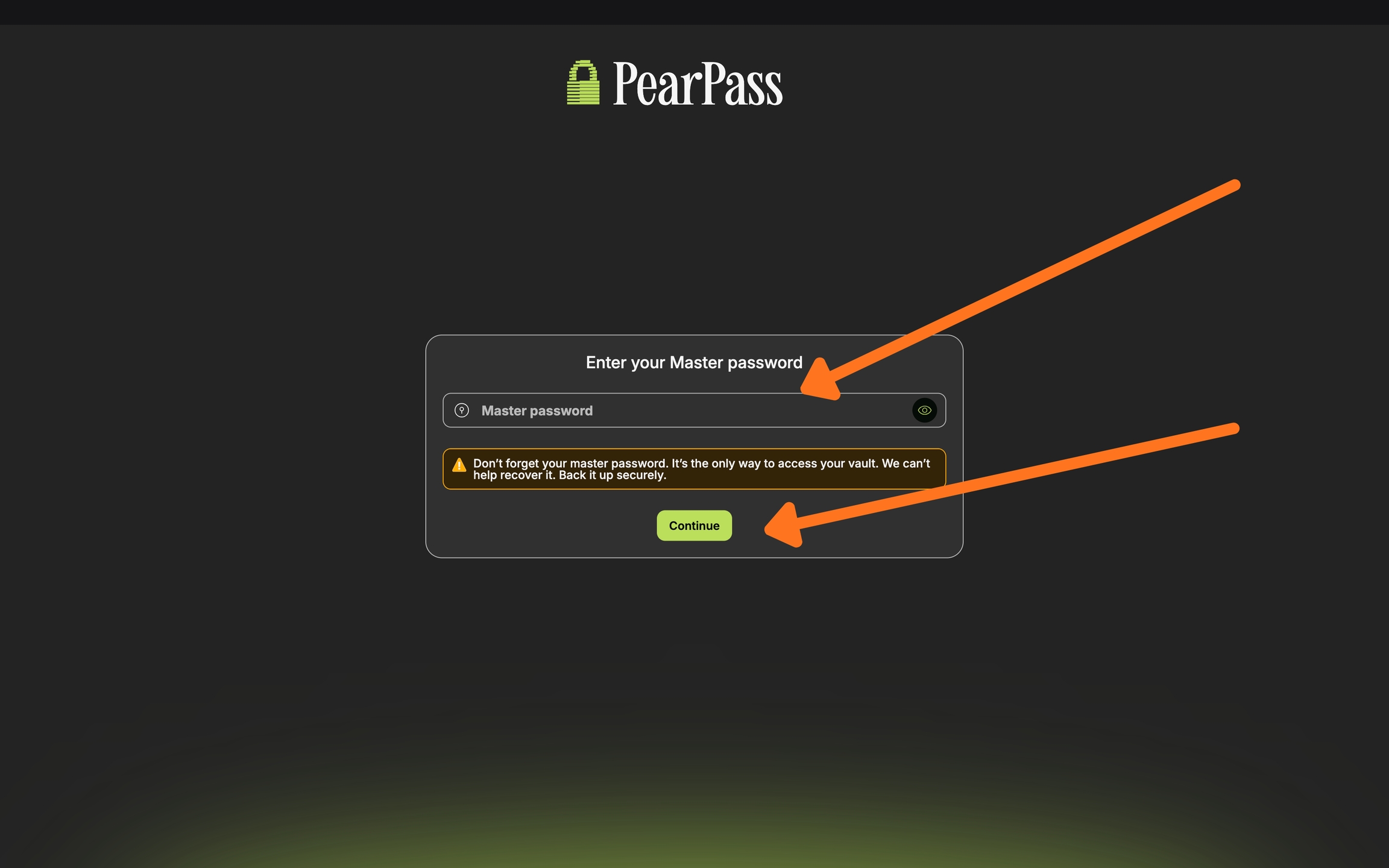
Open PearPass and sign in
Open the PearPass app and sign in with your master password.
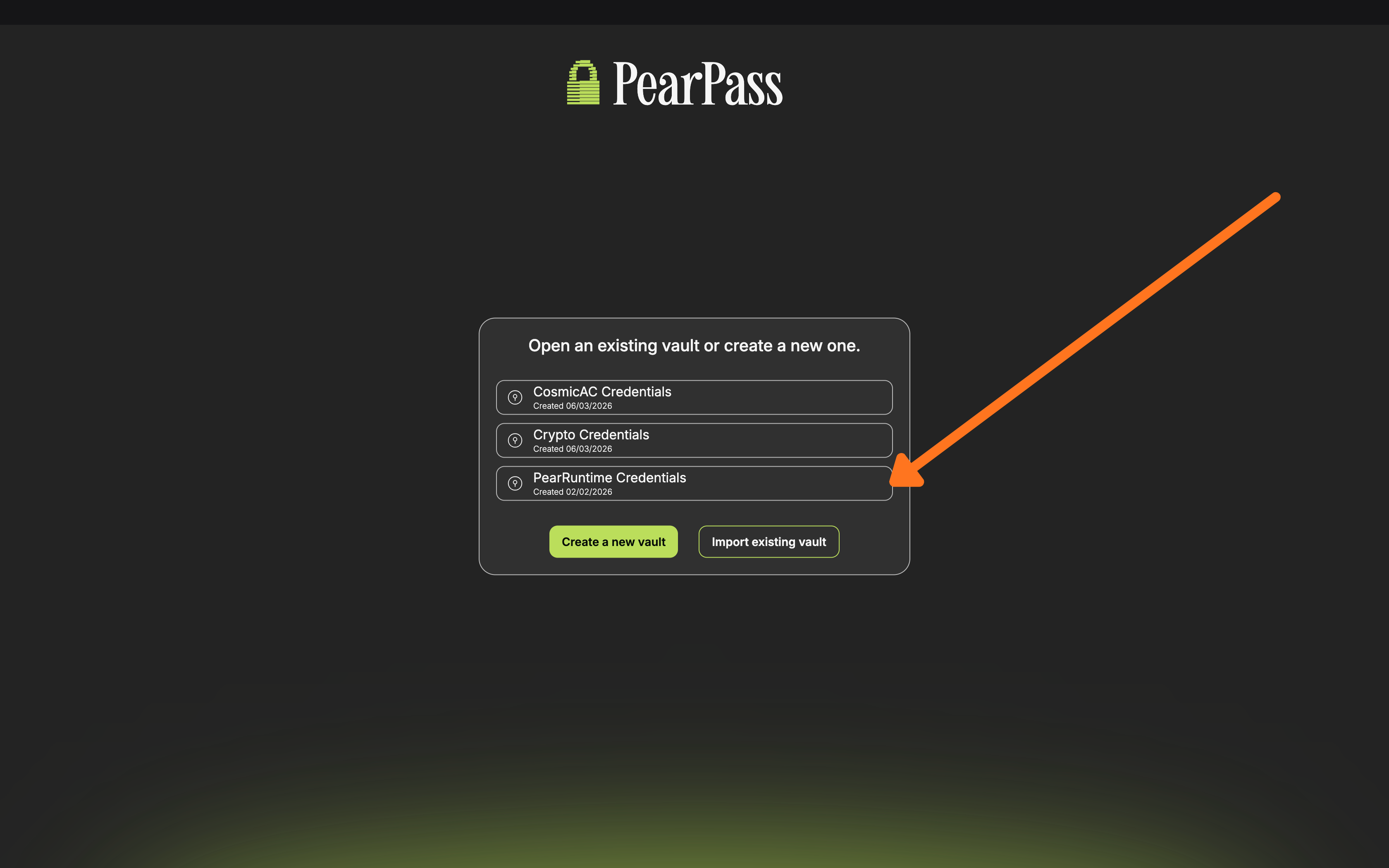
Select a vault
Select the vault you want to export.
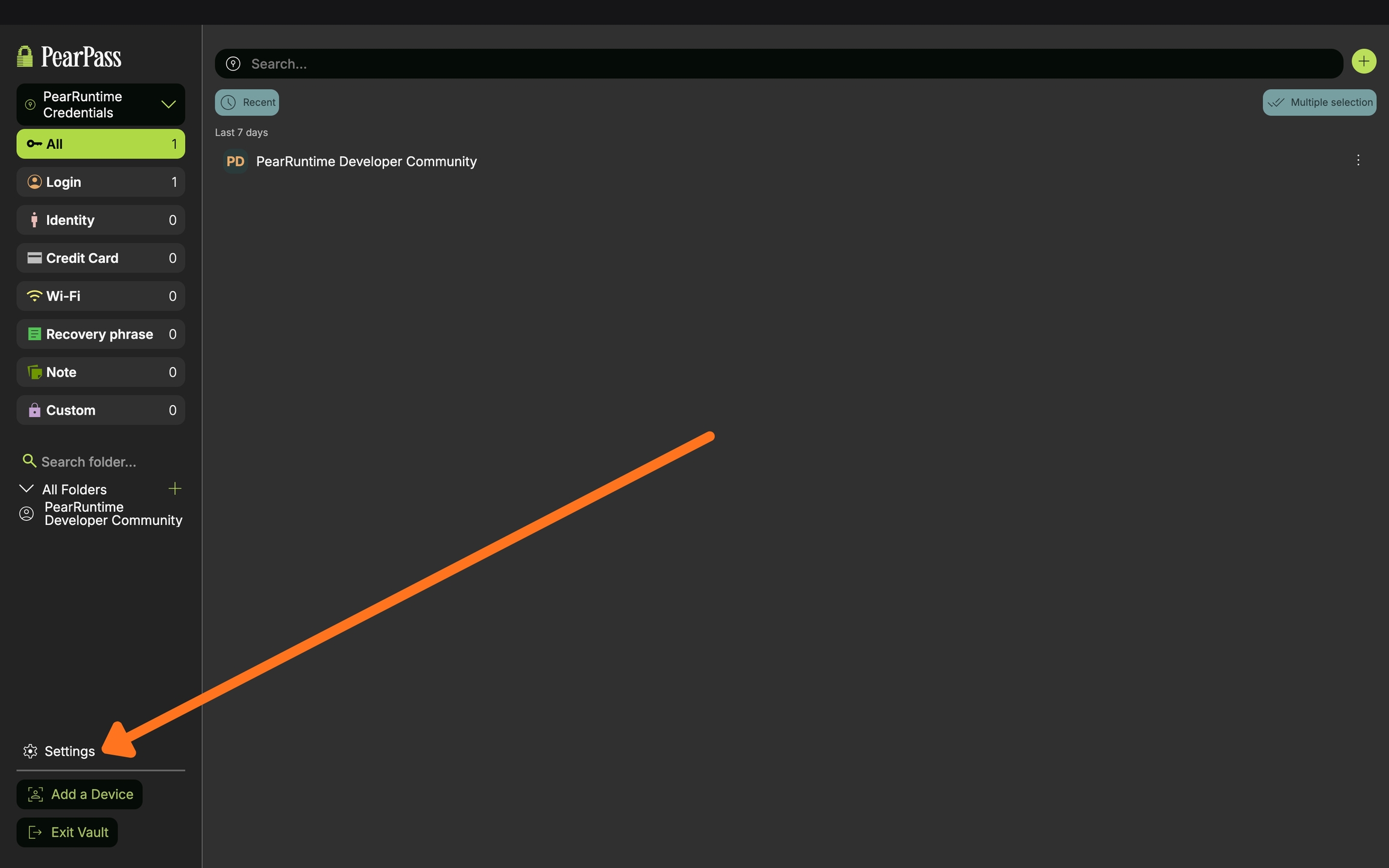
Open Settings
Click Settings.
Export your vault
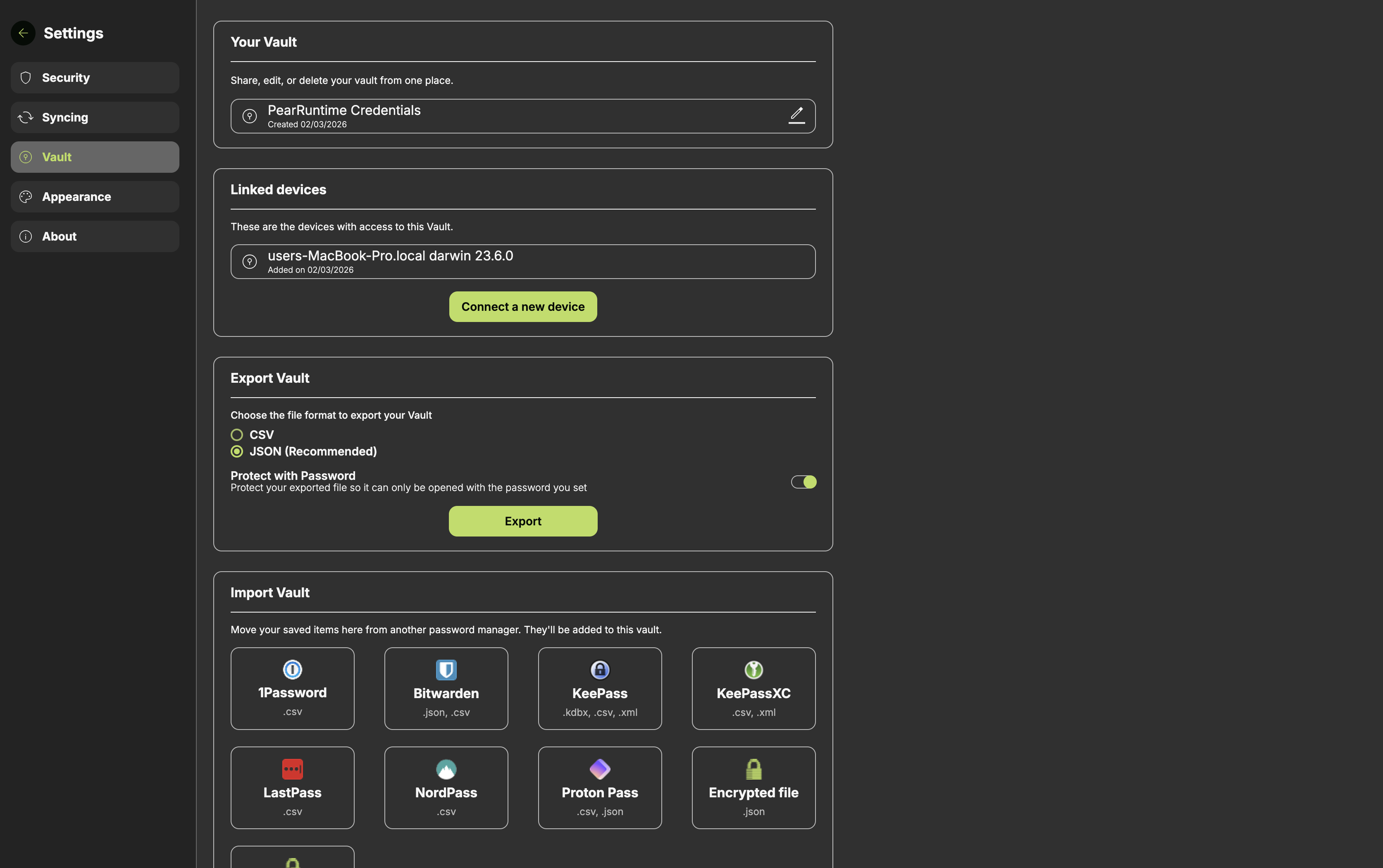
On the side menu bar, click Vaults. In the Vaults screen, navigate to the Export Vault section. Select a format (.csv or .json) and click Export. To protect the exported file, click on the Protect with Password toggle.
Confirm export
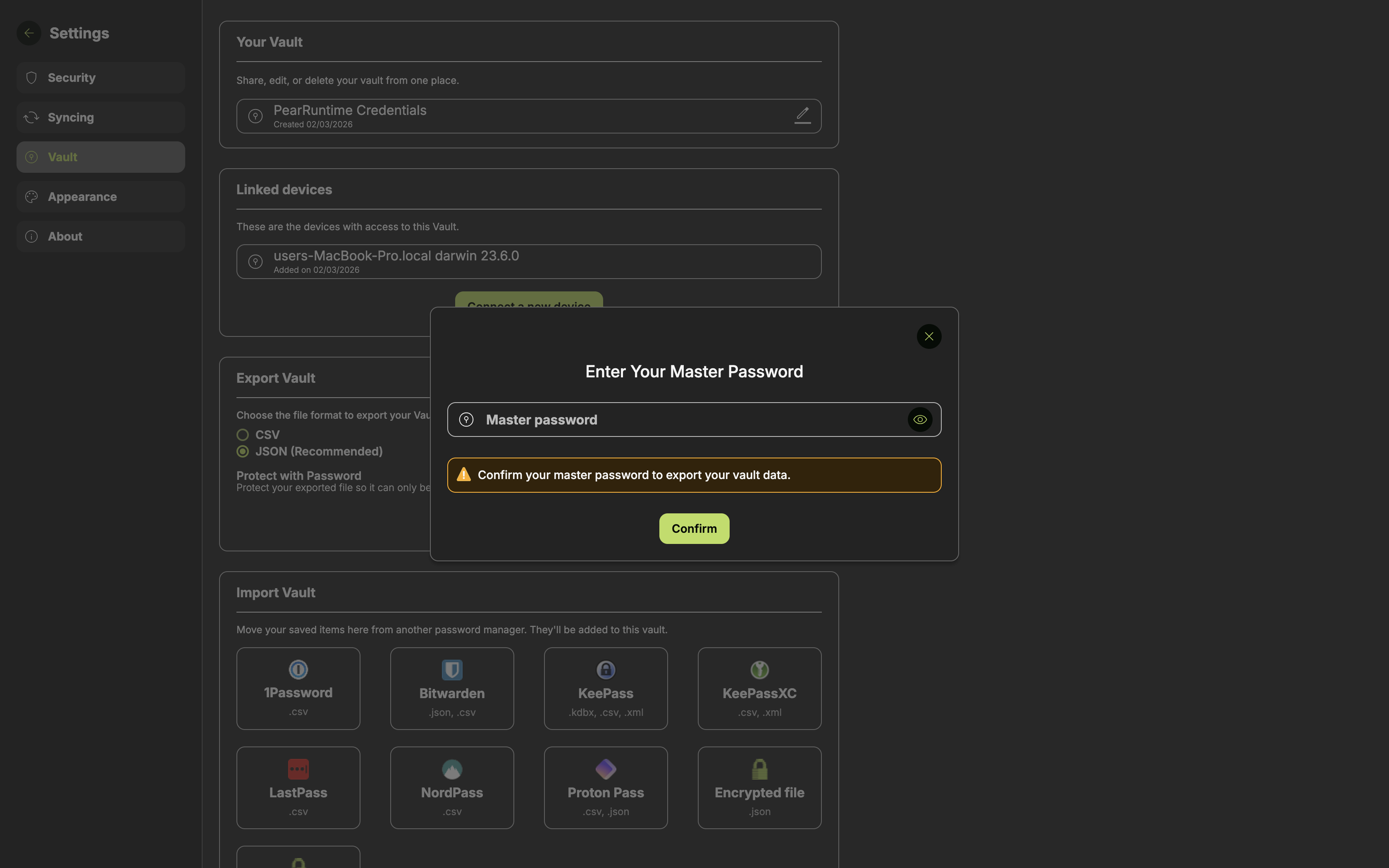
Enter your master password and click Confirm. Choose where to save the file on your device.
Set a password for your export (optional)
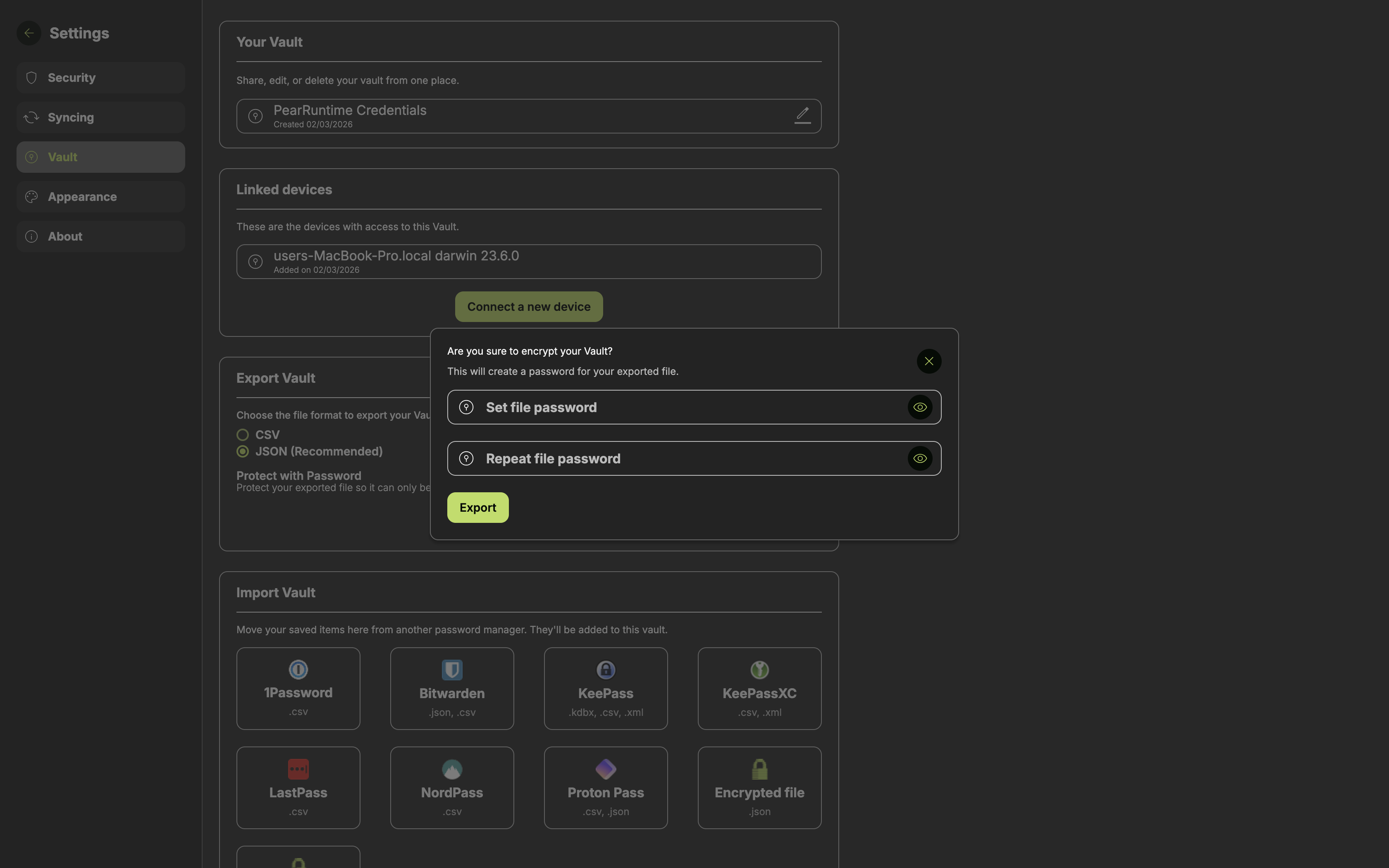
If you enabled Protect with Password, you'll be prompted to set and confirm a password for the exported file. This password will be required to open the file later.
Open PearPass and sign in
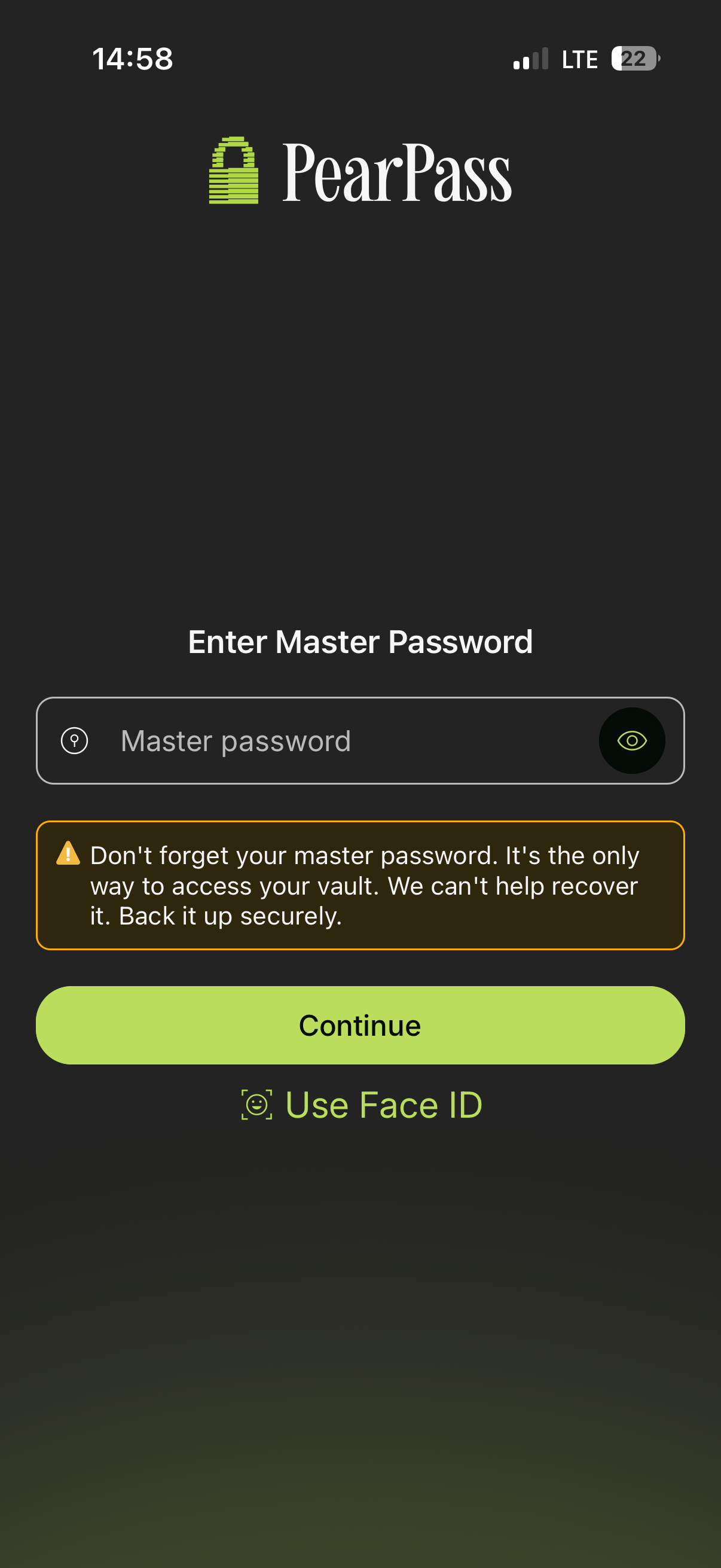
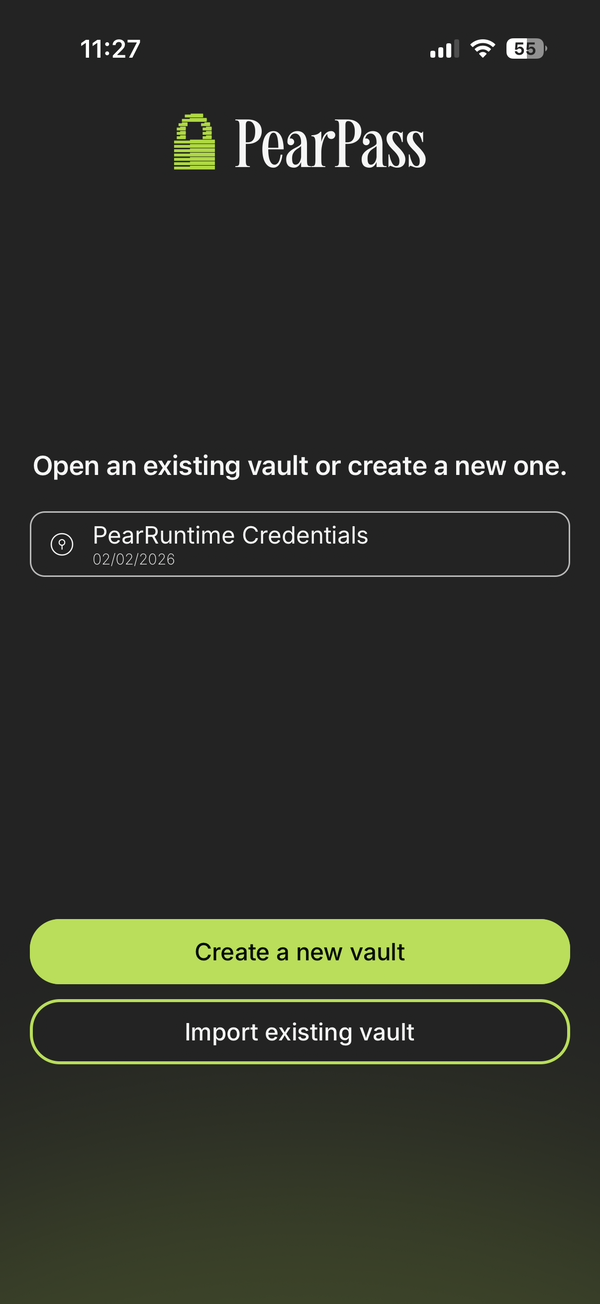
Open PearPass on your mobile device and sign in with your master password.
Select a vault
Select the vault you want to export.
Open Settings
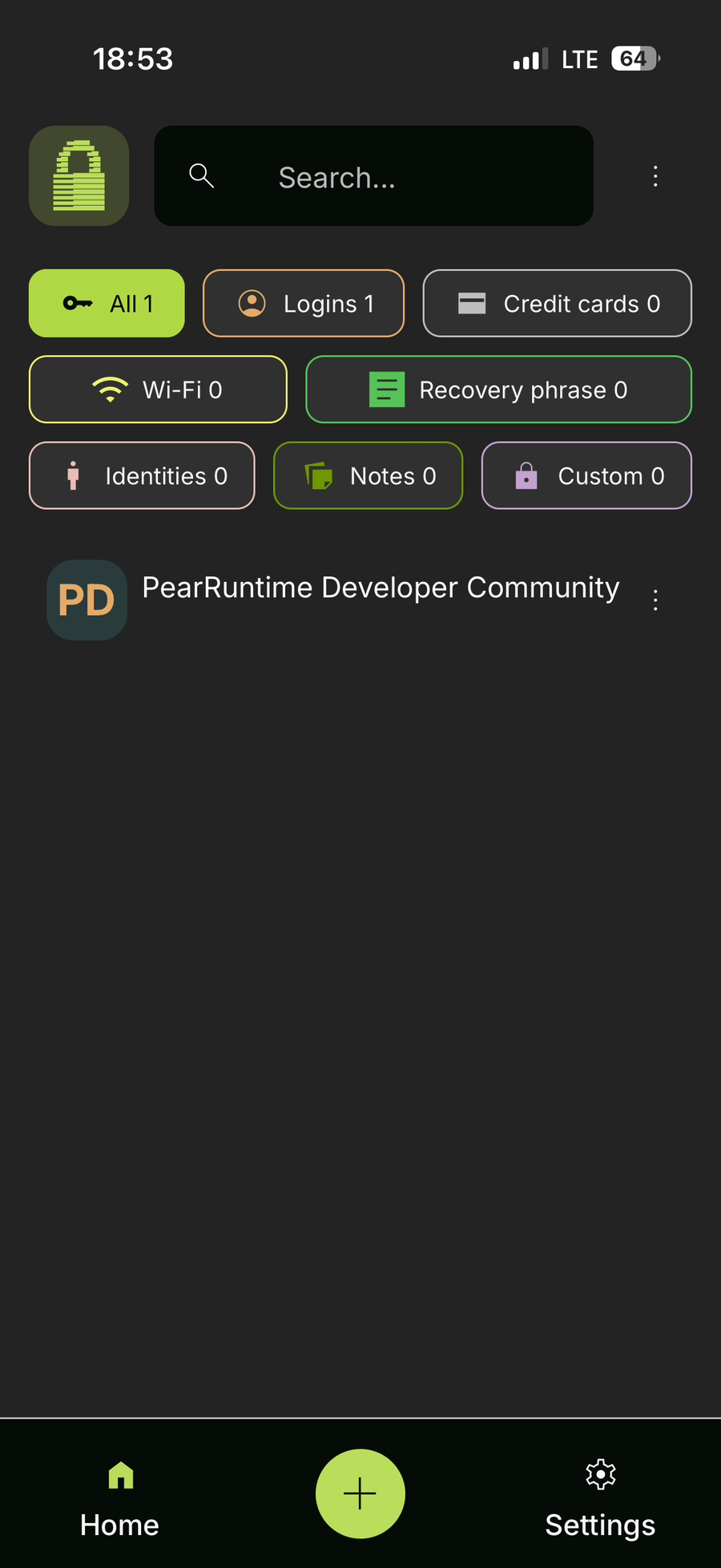
Tap Settings.
Open Vaults
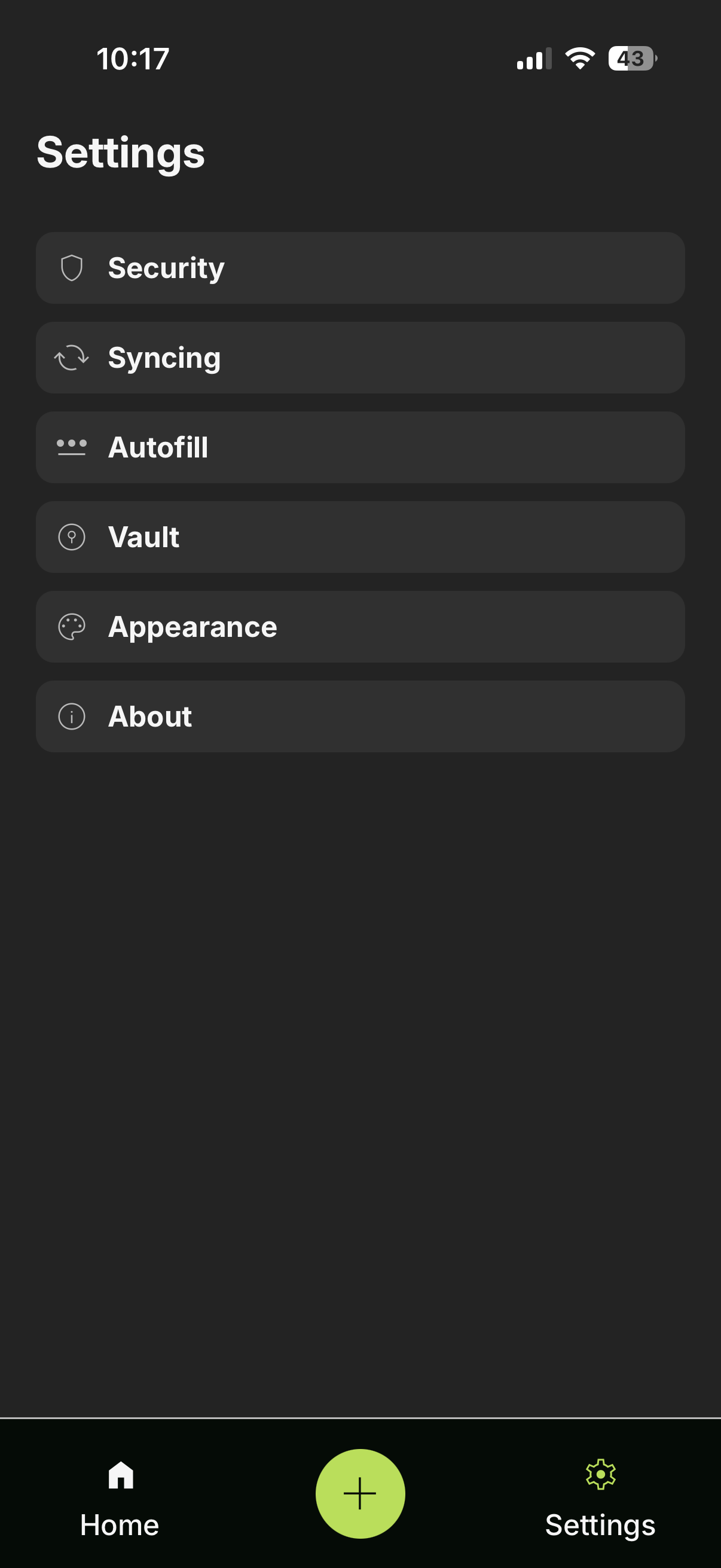
Tap Vaults from the menu.
Export your vault
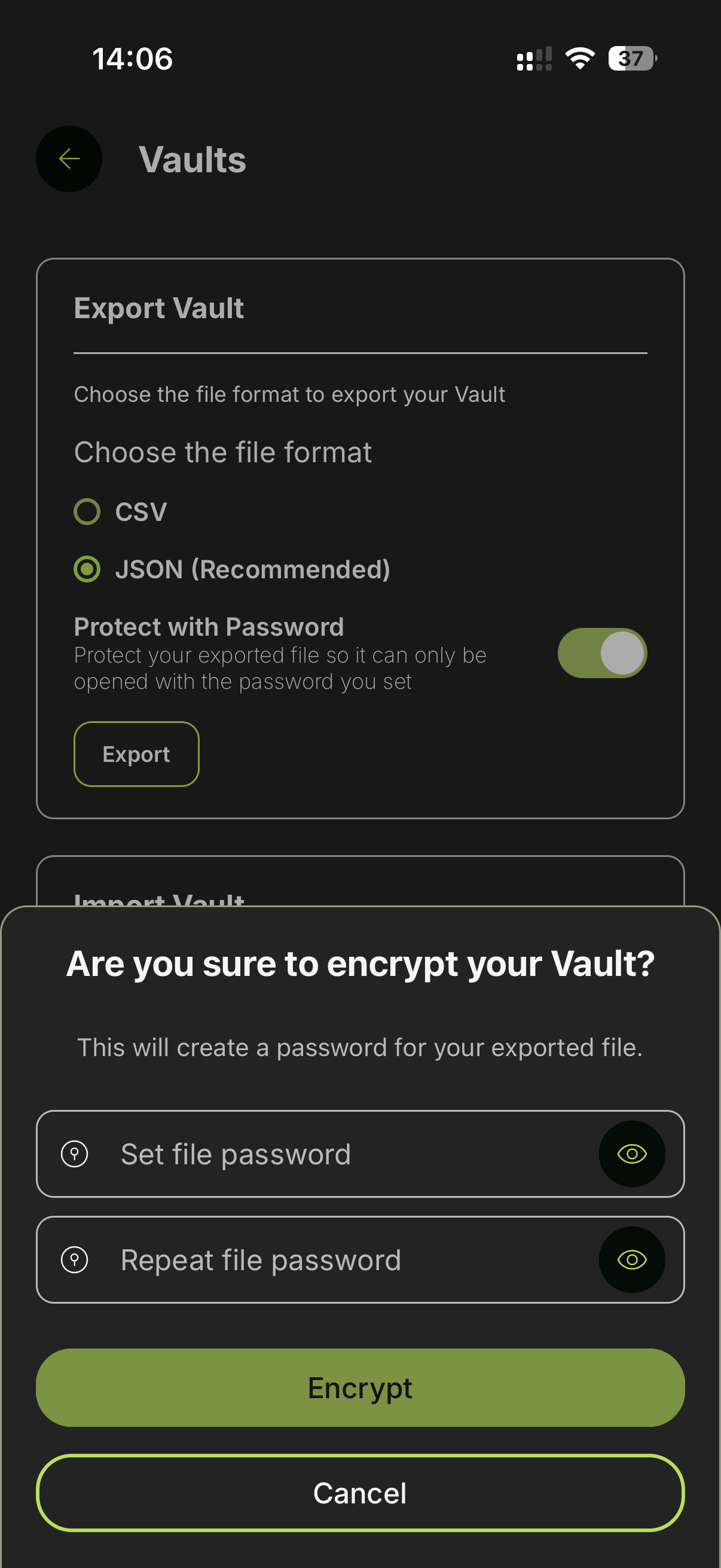
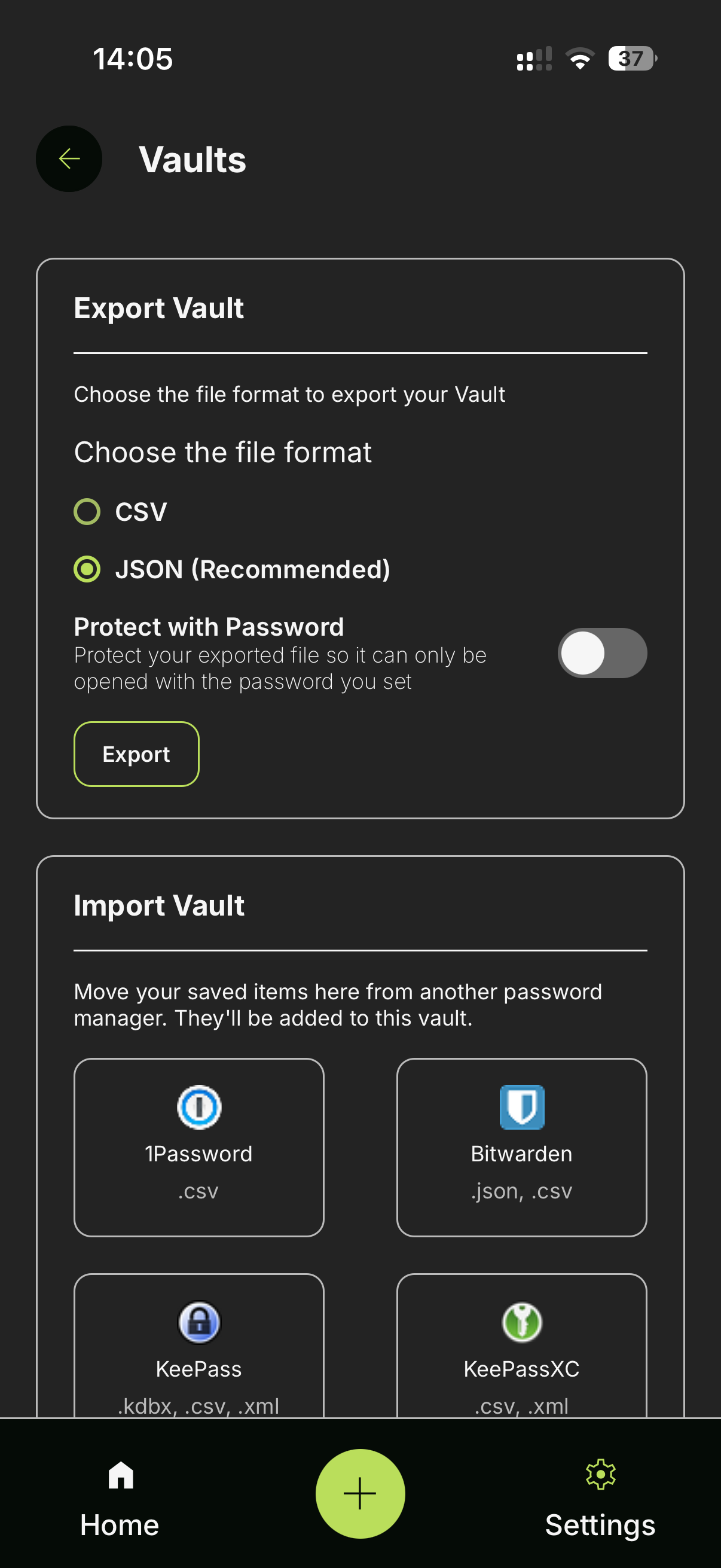
In the Vaults screen, navigate to the Export Vault section. Select a format (.csv or .json) and tap Export. To protect the exported file, tap on the Protect with Password toggle.
Confirm export
Enter your master password and tap Export. Then choose where to save the file on your device.
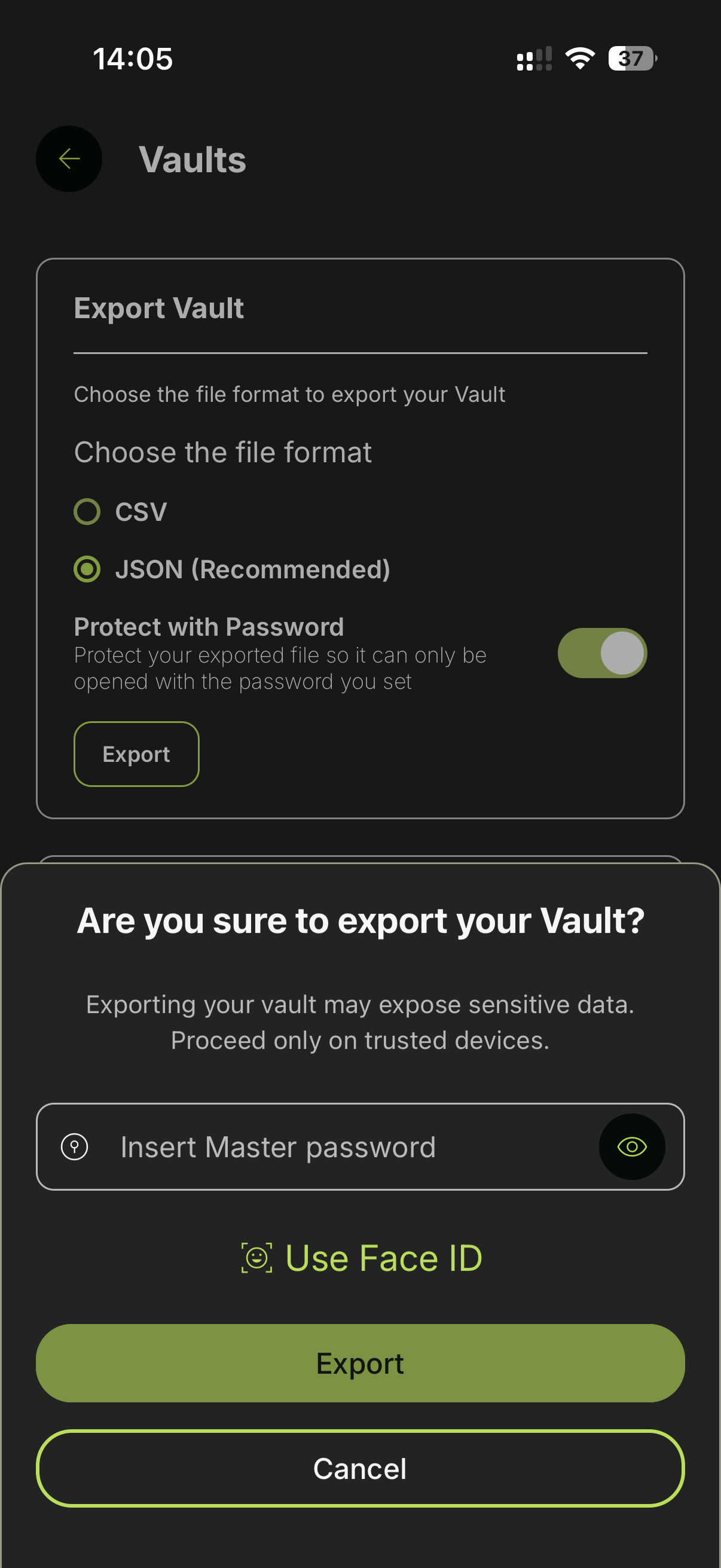
Set a password for your export (optional)
If you enabled Protect with Password, you'll be prompted to set and confirm a password for the exported file. This password will be required to open the file later.